Configuration procedure for using multiple Amika tablets in the same dwelling, with one tablet acting as the Master and the other tablet(s) acting as Secondary tablets.
Before starting the multi-tablet configuration, make sure the installation meets all of the following requirements.
Master tablet
The Master is the main Amika tablet for the dwelling. It contains the reference configuration and database that will be shared with the Secondary tablet(s).
Secondary tablet
A Secondary tablet connects to the Master on the local network and retrieves the dwelling database from it. The interface may also be referred to as the Secondary mode; this is the tablet sometimes described as the “slave” tablet.
Important: The Master must be fully configured before the Secondary tablet(s) are connected. The Master database is the reference database distributed to the Secondary tablet(s).
On the Master tablet and on every tablet that will be configured as Secondary, open Settings, expand System Management, then select System Settings.
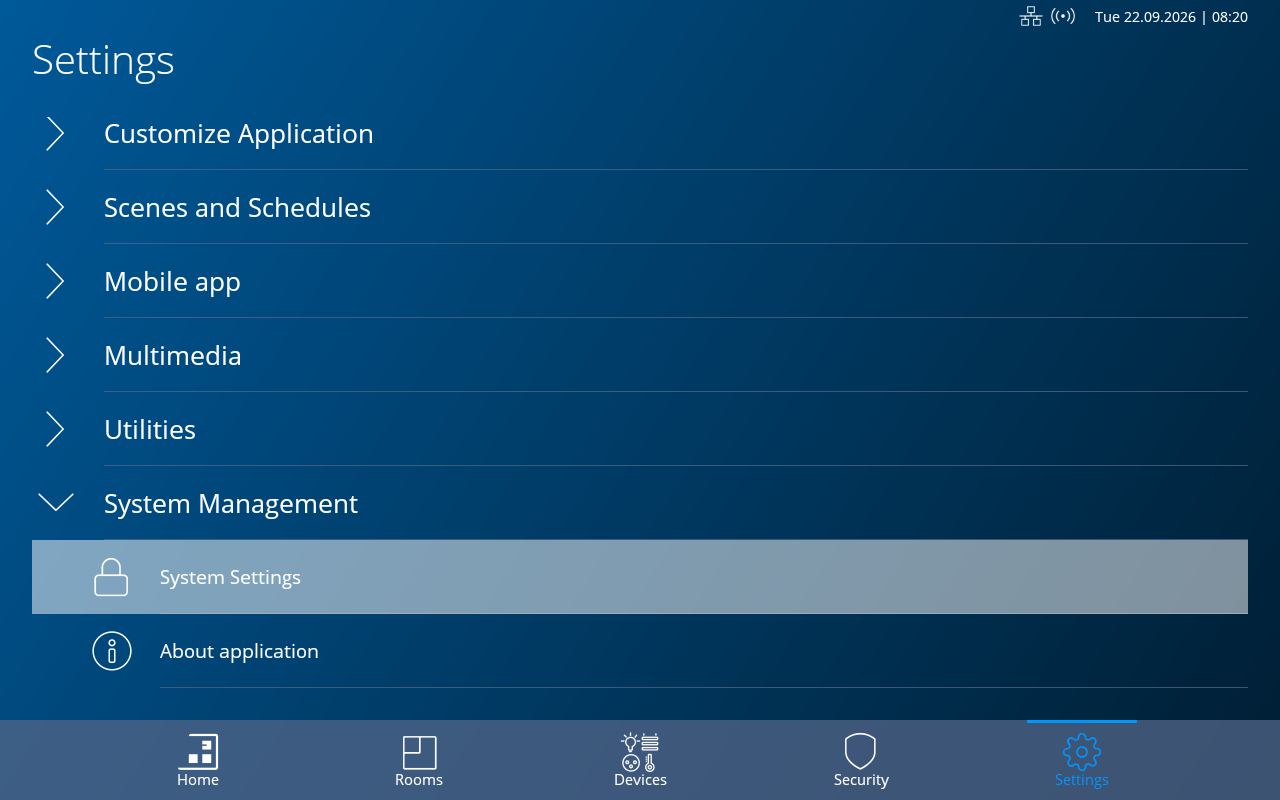
Perform this step on the Master and on every Secondary Amika. Click the screenshot to display it in full size.
In System Settings, select Multi tablets. Open this page on both the Master tablet and the Secondary tablet(s).
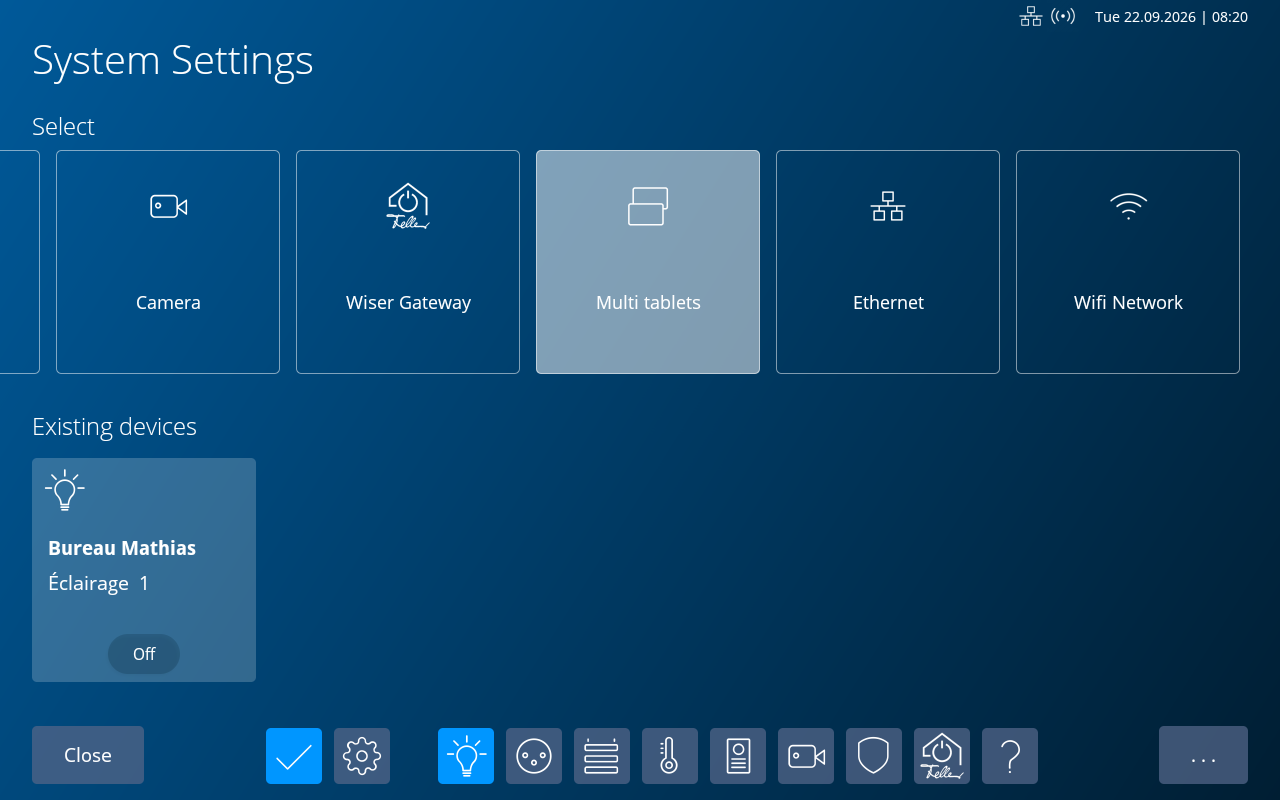
Select Multi tablets on each Amika involved in the installation. Click the screenshot to display it in full size.
On the Amika that contains the complete dwelling configuration, select Master mode.
Mode: Select Master.
Master IP address: Leave the displayed address unchanged.
Socket port: Leave the default port unchanged.
Number of secondary tablets: Enter the number of Secondary Amika tablets that will be connected to this Master.
System ID: Enter an identifier for this multi-tablet system. The same ID will be entered on every Secondary tablet belonging to this dwelling.
System ID must be unique on the network. If several dwellings in the same building share the same local network and use multi-tablet mode, never reuse the same System ID for two different dwellings.
When all values are correct, select Validate and reboot. Wait until the Amika has completely restarted before continuing.
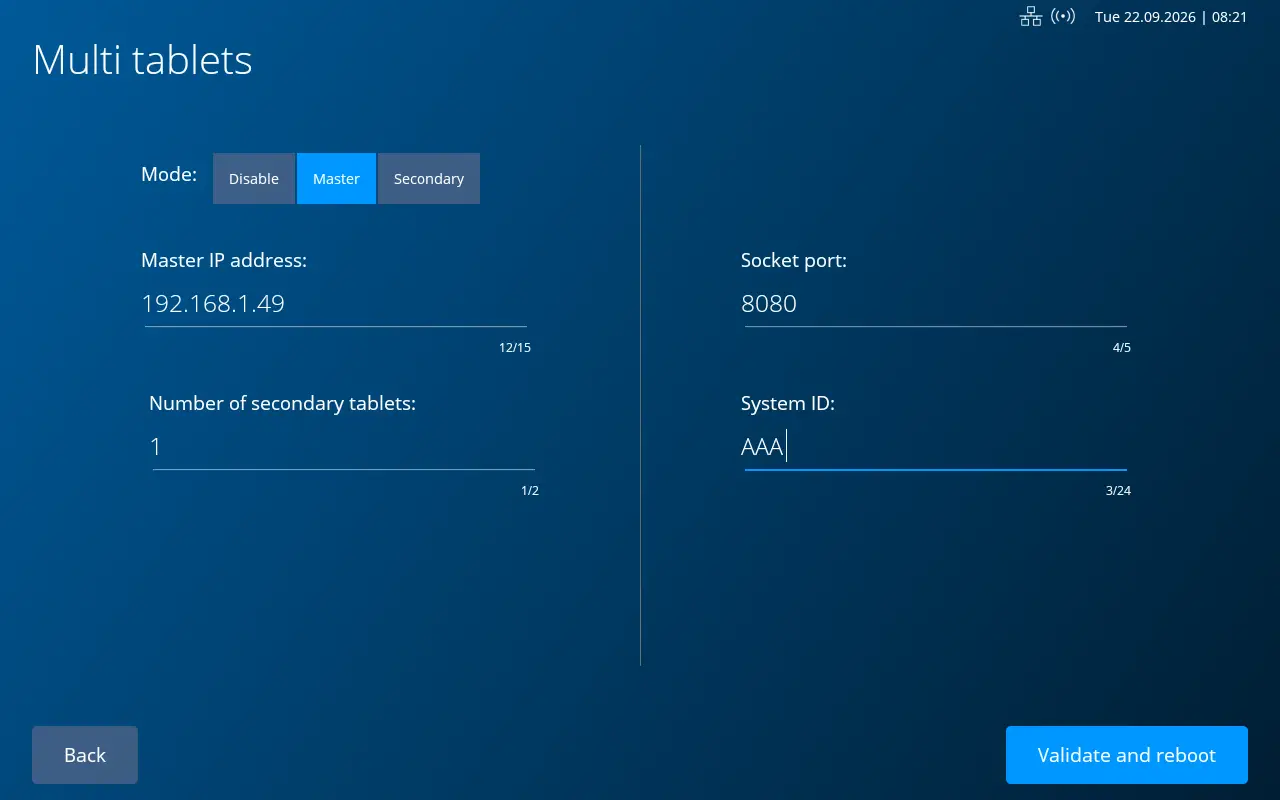
Example of a Master configuration. Click the screenshot to display it in full size.
On the second Amika, select Secondary mode. Repeat this step for each additional Secondary tablet if more than one is used.
Mode: Select Secondary.
Master IP address: Leave the displayed address unchanged.
Socket port: Leave the default port unchanged.
System ID: Enter exactly the same System ID as the one configured on the Master tablet.
Select Validate and reboot, then wait until the Amika has completely restarted.
The System ID is used to associate the Secondary tablet with the correct Master when multiple multi-tablet installations are present on the same network.
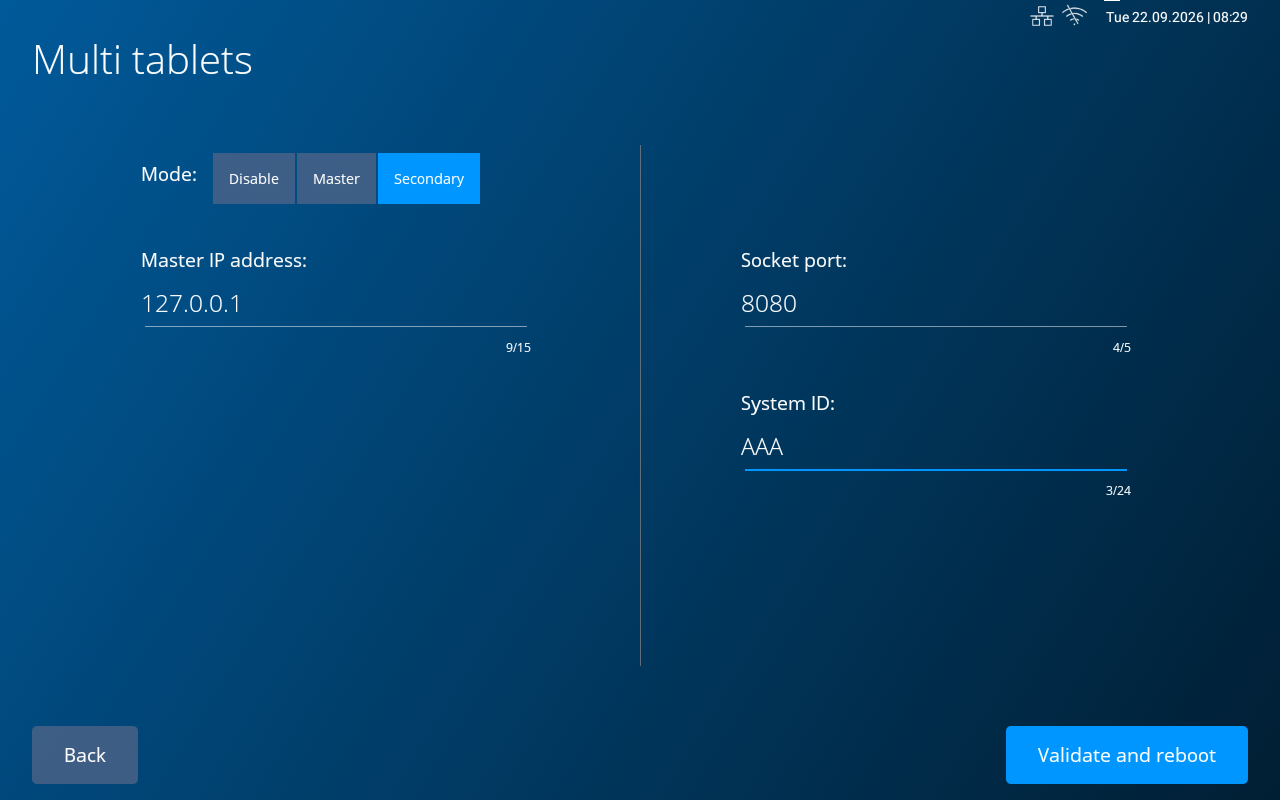
The Secondary tablet must use the same System ID as the Master. Click the screenshot to display it in full size.
After a few minutes, the Secondary Amika should automatically discover the Master on the local network and retrieve the complete dwelling database.
Once synchronization is complete, the Secondary tablet can:
Configuration complete: the Master remains the reference tablet for the dwelling configuration, while the Secondary tablet(s) use the synchronized database to provide additional control points in the same installation.
Synchronization issue: if a Secondary tablet loses its connection or synchronization with the Master for any reason, simply restart the Secondary Amika from Settings → Utilities → Restart Amika.